Friday, June 19, 2015

How to Setup Windows 7 or Windows 8.1 from USB drive?

Hi guys!
Lets take a look at how to Setup Windows 7 or Windows 8.1 from USB drive.
Here we are using a tool called PowerISO. This tool is easy to use and available.
Step1: Create Bootable USB Drive:
    1. Start PowerISO (v4.8 or newer version, download here).
    2. Insert the USB drive you intend to boot from.
    3. Choose the menu “Tools > Create Bootable USB Drive”. The “Create Bootable USB Drive” dialog will popup. If you are using Windows Vista or Windows 7 / 8 operating system, you need confirm the UAC dialog to continue.
    4. In “Create Bootable USB Drive” dialog, click “…” button to open the iso file of Windows 7 or Windows 8.
  • Select the correct USB drive from the “Destination USB Drive” list if multiple USB drives are connected to the computer.
  • Choose the proper writing method. “USB-HDD” is recommended.
  • Click “Start” button to start creating windows 7 / 8 bootable USB drive.
If no errors occurred in the above process, you should now be all set to setup Windows 7 / 8 from USB drive!
Step 2: Configuring the BIOS:
You should now reboot and go into the BIOS configuration to boot from USB. Instructions for doing so wildly from system to system, but generally entail the following:
  1. Reboot the system.
  2. While booting (before Windows starts loading), get into the BIOS configuration screen by hitting something like F1, F2, Delete or Escape. Hotkey instructions are generally provided on the screen.
  3. Go to the section that contains your boot devices.
  4. With your USB drive plugged in, the USB drive should be listed. If it isn’t, your system might not support booting from USB. Assuming that it is supported (as is the case with virtually all modern hardware), promote your USB drive to the primary boot device.
  5. Exit from the BIOS configuration, saving all changes.
If you’re completely new to BIOS configuration, BIOS for Beginners over at Tom’s Hardware might be a good primer. Be aware though, that you can seriously screw up your system by providing incorrect settings!
Step 3: Booting and setup windows 7 / Windows 8 from USB drive:
Assuming that you properly configured your BIOS and your USB drive supports booting,  Windows 7 / 8 setup should now load. Depending on the speed of your USB drive, this may take a while.
If it isn’t working, then double-check the following before making a scene:
  • Is your BIOS properly configured for booting from the USB device? (Is the USB device listed and does it have top priority?)
  • Have you correctly prepared the USB drive in step one? (Restart the procedure.)
  • Does your USB drive properly support being booted from? (Try another one!)
Note: The above guide works with Windows Vista / Windows 7 / Windows 8 only. For Windows XP with SP2 or SP3 please refer to another guide at http://www.poweriso.com/tutorials/how-to-make-winxp-bootable-usb-drive.htm .

How to create run commands for any application in windows ?

Hi guys, it’s been a long time I posted any article related to windows. Actually I’m very busy these days and hardly getting some time to write on my blogs. Well, leave it. Let’s come to the point.

In your daily life, you might be using so many applications frequently and might have created shortcuts for them on your desktop. But I have noticed that few people are addicted to use run commands to open some particular apps such as MS Word, Excel etc. So, here I’m gonna tell you how to create run commands for any file which you want to use. Just follow the steps below:
First of all, choose any application you want to create run command for.
Now create a shortcut for that application on your desktop. You may give it any name. In my case, suppose I want to open Adobe Reader using run command and I wish the word “ar” to be run command to open Adobe Reader. So first I’ll create a shortcut for Adobe Reader and rename it as “ar”, remember that it is an application with the extension .exe
Now copy the shortcut “ar.exe” and paste it into C:\Windows\System32
Now open run by pressing Win+R keys together and type ar and press enter key.
Now you will see that Adobe Reader has been opened.
In this way, you can create run commands for any application or file in your computer. Keep visiting for more tips and tricks.

Thursday, June 11, 2015

Bootable usb pendrive using cmd

Creating a usb pendrive using command prompt is not hard, it is one of the most common ways to create a bootable usb.
     This method does not work if your operating system is windows xp o, you cannot select the primary partition in comand prompt.
       You just need to follow these simple steps:
  1. First step is to obtain the windows files from somewhere and save them to a folder in your pc. You can rip a windows dvd , or if you have the iso image file you can open it with magic disc or daemon tools or even winrar , and you need to copy the whole content to a folder anywhere in your pc , you just need to make sure you know where it is located.
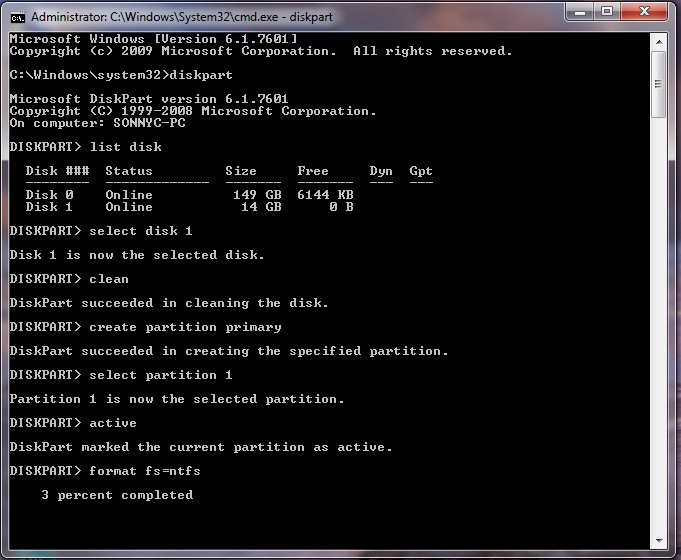
  2. Make sure your usb stick is inserted, go to start search cmd , right click the  file and select run as administrator. The command prompt will appear, now you need to write the following comands:
  3. diskpart→list disk→select disk 1(chose  the usb device, you will recognize it by its size)→clean(this will erase the usb)→create partition primary→select partition 1→active→format fs=ntfs(this will format the usb drive and will take 10-15 minutes)→Untitled 5
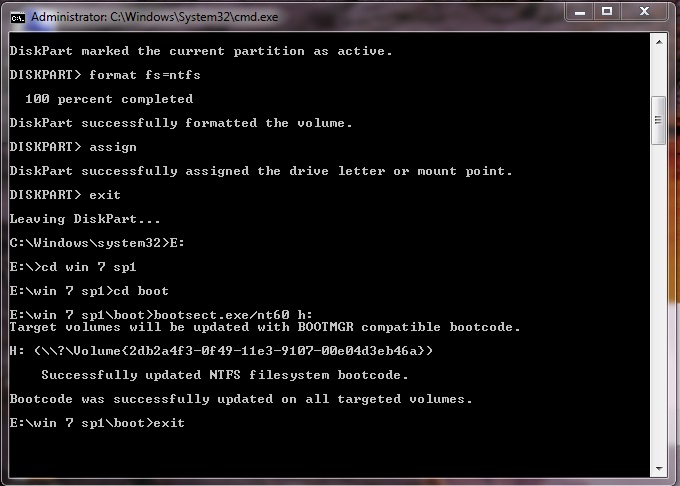
  4. After the format is done you have to continue writting  in command promt :  →assign(now you will notice that the usb drive changed its letter to (H): or (G))→exit(this command will exit the disk part function)
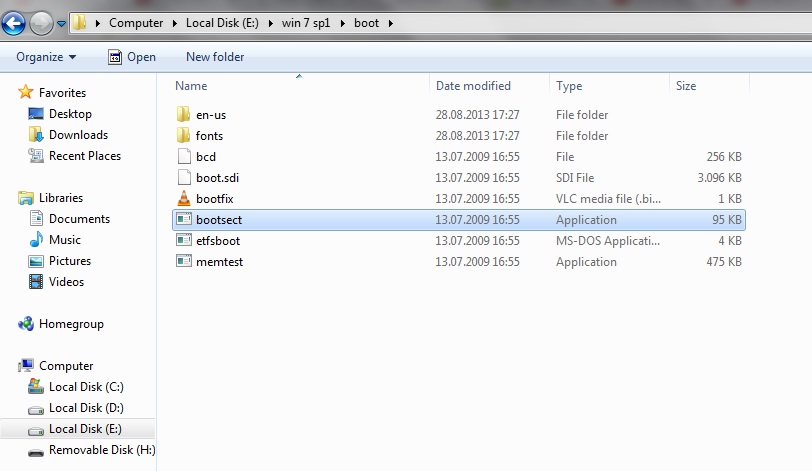
  5. Now you have to write the path to the executable file in your windows saved folder , make sure that in your windows folder you have the boot folder with the bootsect executable file.Untitled 8
  6. In my case the command goes like this:   E:→cd win 7 sp1→
           →cd boot→bootsect.exe/nt60 h:(h is the letter of the usb drive ,this comand will update the boot core)→exit (this will exit command prompt).
Untitled 6
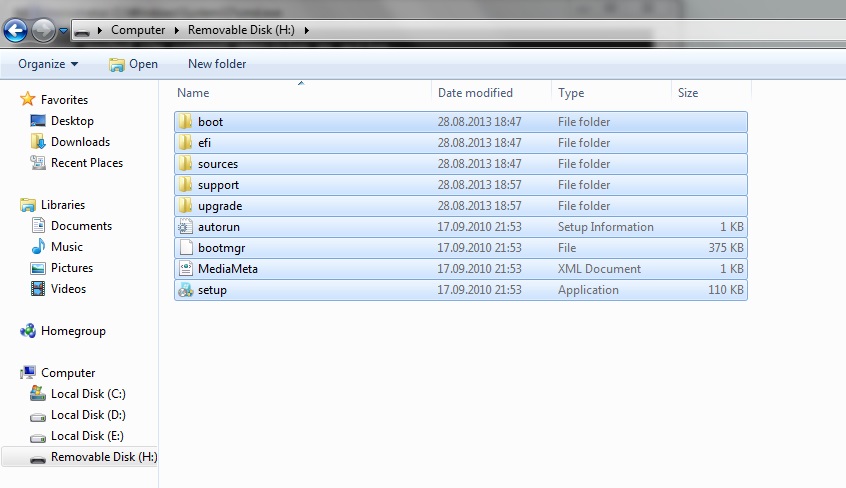
  1. Now you have to copy all the files in the windows folder to your usb drive. Untitled 7
  2. ALL DONE. You can now restart your pc and boot from the usb hard drive.